
Nourish AI Scribe: How It Works and Troubleshooting Guide
What is the Nourish AI Scribe?
The Nourish AI Scribe is a powerful tool designed to help Registered Dietitians focus on patient care instead of paperwork. This feature records Zoom sessions, transcribes the conversation, summarizes the key content, and pre-fills the chart note - including PES statements, relevant labs, medications, and progress updates. Many dietitians report completing their charting in under 5 minutes when using the scribe, helping reduce end-of-day documentation stress.
The latest version of the AI Scribe delivers a summary within 2-3 minutes after your session ends. This feature is enabled by default for all providers and patients.
AI Scribe in Your Charting Workflow
Before Your Session
No special preparation is needed - the AI Scribe works automatically with your regular Zoom appointments
During Your Session
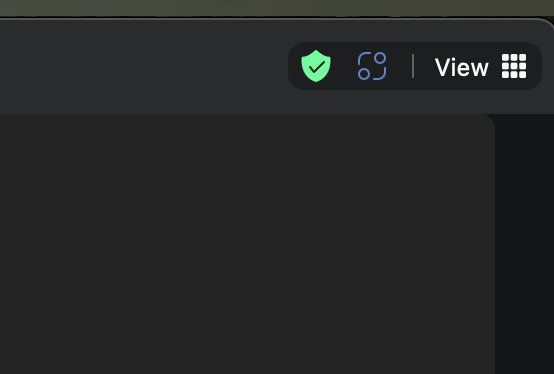
The blue indicator in the corner confirms the session is being recorded
Conduct your appointment normally, discussing all relevant clinical information
After Your Session
View the AI-Generated Summary: Within 2-3 minutes of session completion, the AI Scribe summary will appear in a dedicated section of the chart note
Review and Autofill: The summary provides structured information that you can review and use to autofill different sections of your chart with a single click
Field-by-Field Control: You can choose which fields to autofill from the scribe summary - nothing is added automatically without your review
Edit as Needed: Make any necessary adjustments to the autofilled content to ensure accuracy
Complete Documentation: Add any additional information not captured by the scribe
Sign and Lock: Once satisfied with the content, sign and lock the note to complete your documentation
Time-Saving Benefits
Many RDs report completing chart notes in under 5 minutes using the AI Scribe
The tool allows you to spend more time connecting with patients and less time on documentation
You can handle back-to-back appointments more efficiently without accumulating documentation backlog
How to Control Transcription
If you or your patient wishes to disable transcription:
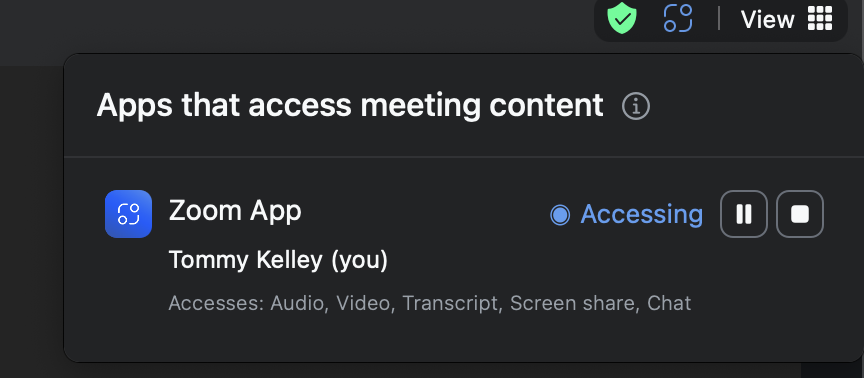
Click on the blue square in the top-right corner
Choose to either pause the transcription temporarily or stop it entirely for the current session
Connection Issues and Troubleshooting
Verifying AI Scribe Recording Status
Check visual indicators: Confirm the blue blinking square in the top-right corner and "app accessing meeting content" notification remain visible throughout your session
If indicators disappear: This may indicate that AI Scribe recording has stopped
If you see the blue blinking square disappear, you can manually record with these instructions:
Click the "Record" button in your Zoom toolbar
Select "Record to the Cloud" (not "Record to Computer")
When the session ends, the recording will be processed and a transcript will be generated, though this may take 15-20 minutes
When AI Scribe Won't Work
Leaving and rejoining Zoom: If you leave the Zoom meeting and then rejoin, the AI Scribe typically won't resume properly
Connection interruptions: Brief internet disruptions may cause AI Scribe to stop recording even if you appear to remain in the meeting
Partial transcriptions: If you experience these issues, you may end up with incomplete transcripts and a partial summary.
Best Practices to Avoid Transcription Issues
Stay in the Zoom call: Avoid leaving the meeting once it has started
Use stable internet: Connect via wired internet when possible
Close background applications: To prevent computer performance issues
Have backup plans: Be prepared to take manual notes if technology issues arise
Missing AI Scribe Summaries
If you don't see an AI Scribe summary after your session:
Allow sufficient time: Summaries should appear within 2-3 minutes after the session ends
Refresh your chart note: Sometimes the summary is available but requires a page refresh
Verify Zoom version: Ensure you're using the latest version of Zoom
When to Report Issues
If you've verified that recording was active and it's been over an hour since your appointment ended without a summary appearing, report the issue by emailing support@usenourish.com.